
How to Use Paperturn's Alt Text Feature
Make your flipbooks more accessible by adding alternative text (Alt Text) to your images.
Paperturn's Alt Text feature allows you to add short descriptions to images. These descriptions can be detected and read aloud by screen readers, helping people with visual impairments understand the information or purpose of an image.
Good Alt Text should briefly explain what the image shows or communicates. Avoid descriptions such as "Image" or "Photo", as these do not provide useful information.
Example: Ron Harvey, Editor-in-Chief
Already Have Alt Text in Your PDF?
Even better! If you have already added Alt Text to the images in your original PDF, you don't need to add it again in Paperturn.
When your PDF is uploaded and converted, Paperturn's flipbook generators automatically detect the Alt Text included in the PDF and transfer it to the corresponding images in your flipbook.
This means the accessibility information you have already added to your PDF is carried over to your digital flipbook automatically, without creating any extra work for you.
You can then use the Paperturn Editor if you would like to review, edit, or add additional Alt Text to your flipbook.
Step 1
Open the flipbook you would like to work with in the Editor.
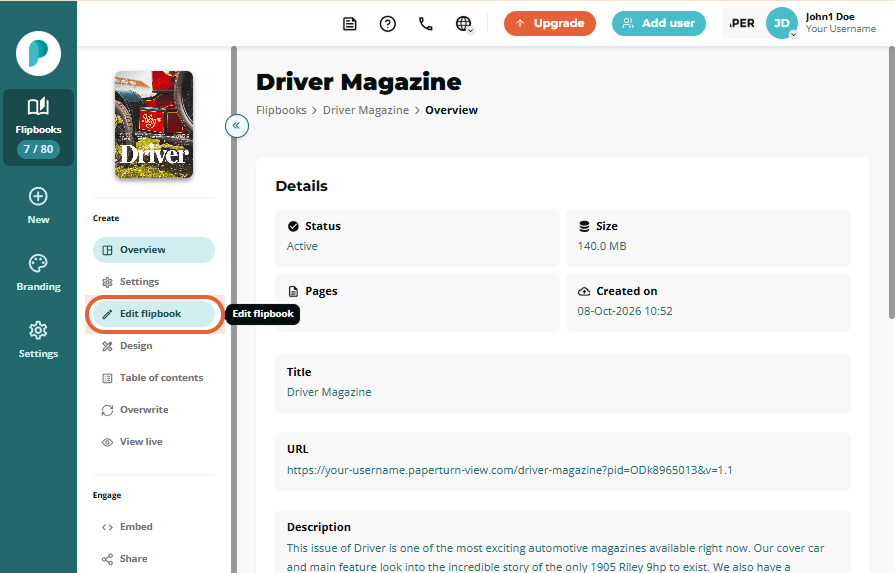
Step 2
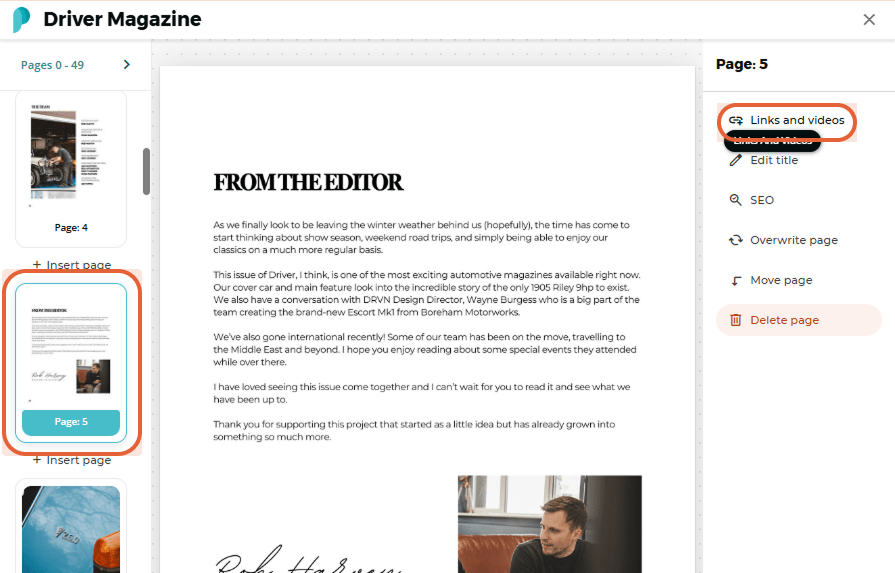
Select the page containing the image you would like to add Alt Text to.
Click Links and Videos on the right side of the Editor.
Step 3
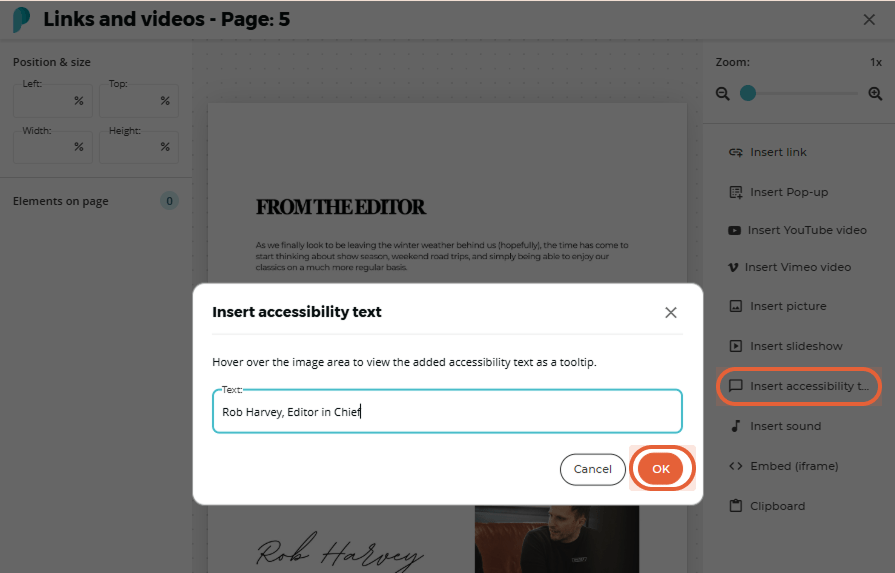
Click Insert Accessibility Text.
Enter a short, meaningful description explaining what the image shows or communicates, and click OK.
Step 4
Once you are back on the page, adjust the size and position of the Alt Text box so that it covers the image you are describing.
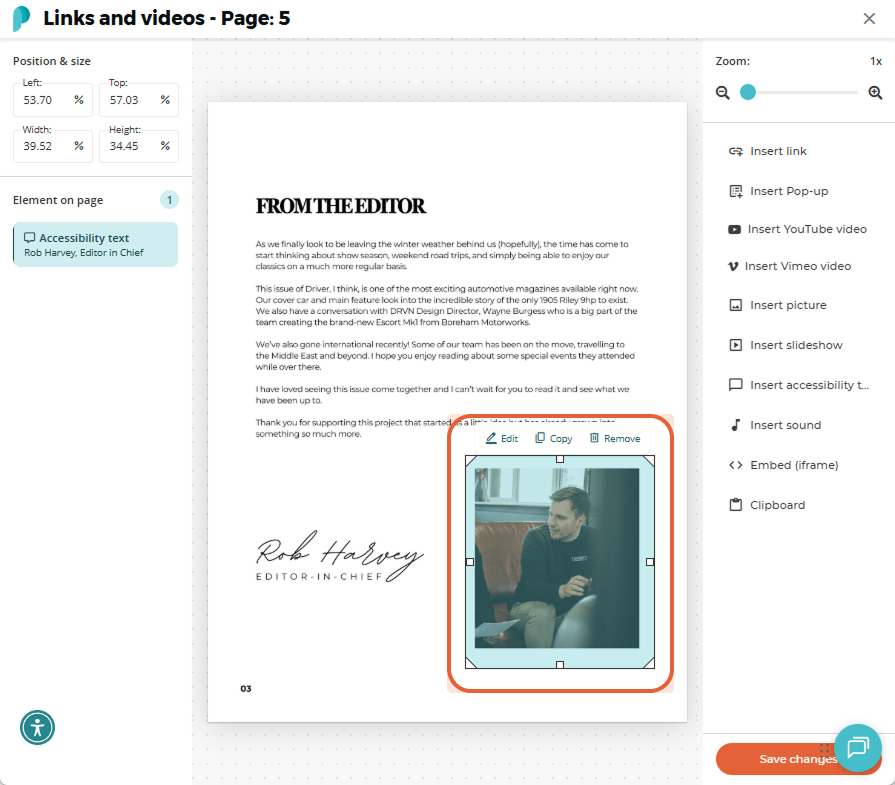
Click Save when you are finished.
Your Alt Text is now associated with the image and can be detected and read aloud by screen readers.
Important – Images with Links
If the image also contains a clickable link, make sure the link is placed on the top layer, above the Alt Text box.
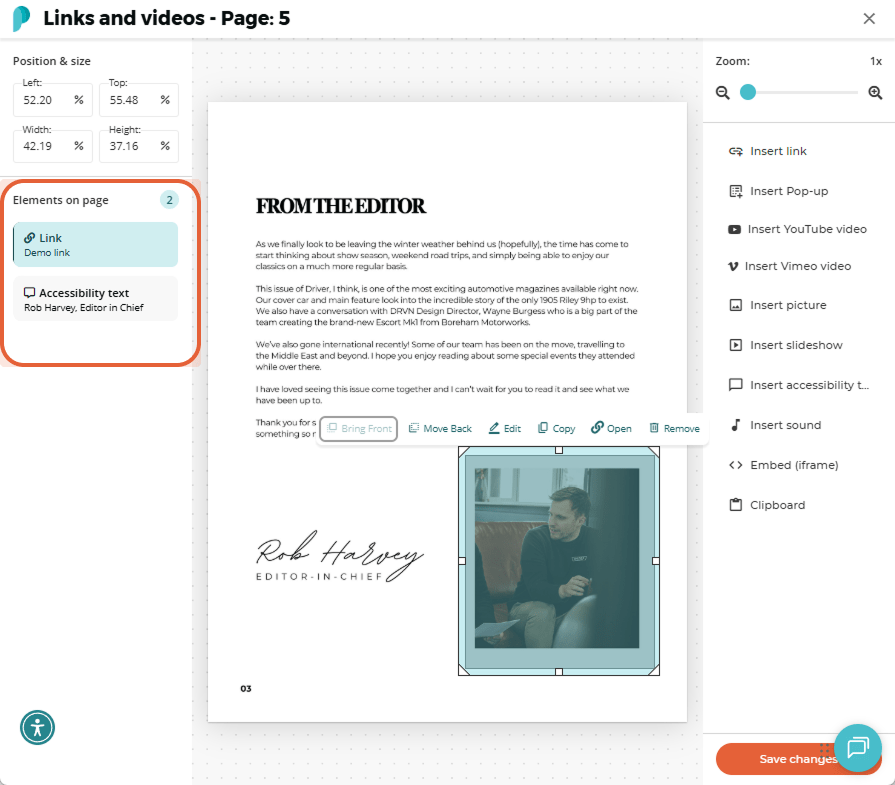
If the Alt Text box is positioned above the link, it may prevent the link from being clickable.
Best Practice: Add Alt Text to images in your original PDF whenever possible. Paperturn can automatically carry this accessibility information into your flipbook, while the Editor gives you the flexibility to add or update Alt Text whenever needed.