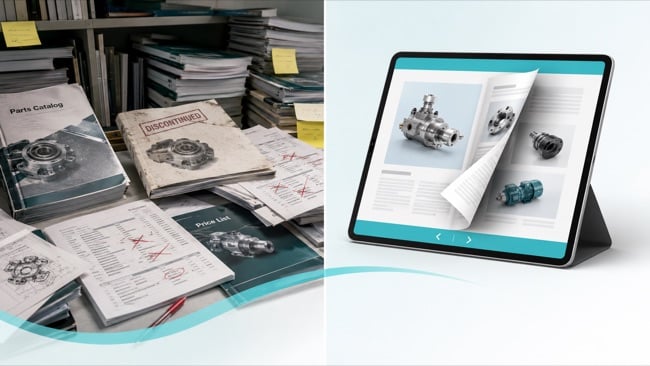
Your 7-Day Flipbook Playbook
In less than 15 minutes a day, you can launch a lead-generating, revenue-making online flipbook. Follow these 4 easy steps, and you'll be creating engaging content that converts prospects into clients effortlessly, at the caliber of our enterprise clients.
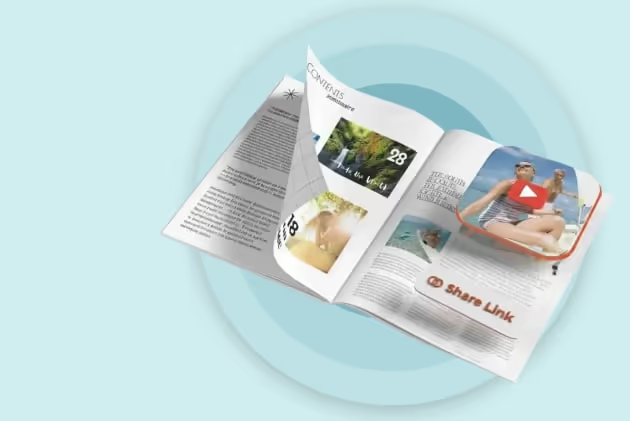
Your Trial Plan: Launch, Learn, Prove ROI
Most trials go nowhere for a simple reason. There is no plan. People sign up, upload something quickly, then get busy. Two weeks pass, and the trial expires.
This playbook is designed to show you the shortest route to business impact. Treat your Paperturn trial as a 7-day proof-of-value sprint. The question that may be on your mind is:
“Can we turn our static PDFs into something more engaging, trackable, and concretely valuable?”
The answer is YES! If you don't believe it, check out one of our customer success stories.
By the end of the trial, you will have:
 1 live, on‑brand flipbook
 Shared across at least 2 channels
 With real engagement and leads
 A simple “ROI snapshot” you can present
Keep the Paperturn dashboard open in another tab and follow along as you set things up. And if you need a taste of what's possible, check out how The North Face's online catalog is looking below.
Step 1: Launch Your First Flipbook
Estimated Time: 10 Minutes
Which single PDF would make the biggest impact for you if it were improved? Before touching any settings, take a moment to reflect on that. Choose impact over convenience. Pick the one PDF that would matter most if it were improved.
To help you choose, these are common high-impact choices:
Marketing:
Product catalog
Company brochure
Event program
Magazine
Sales:
Sales deck
Product overview sheet
Pricing or rate card
Bespoke proposal
HR and Internal Communications:
Employee handbook
Onboarding guide
Internal newsletter
Finance and Professional Services:
Investor or client report
Factsheets
Service overview
Pick one. This is your Trial Hero Document. It will prove whether Paperturn is worth adopting across more assets.
Step 1: Upload your PDF
Log in to the Paperturn dashboard in another tab.
If you didn’t originally upload your most important document, delete the one you uploaded first.
Click add, and upload the Hero PDF you selected.
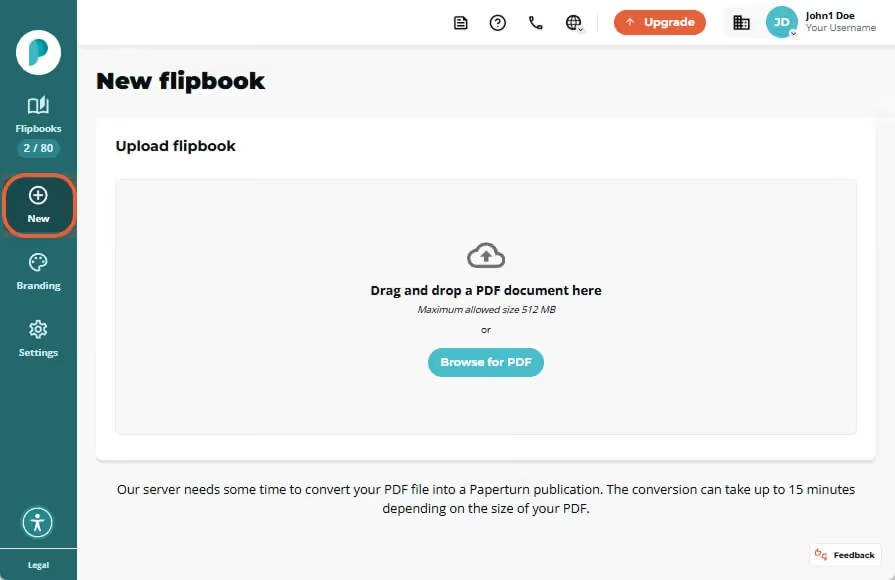
Don't worry about perfection. You can always use the overwrite feature later to refresh content without breaking links.
Need the exact steps? How-to: Optimal PDF Upload Specifications - Paperturn
Step 2: Turn It into a Branded, Interactive Online Flipbook
Your goal in this step is to make it look like your brand, adding at least one interactive element, and creating a clear next step for readers.
We will help you create a modern, branded experience, elevating your static PDF.
2.1 Apply Your Branding
Estimated Time: 10 Minutes
You want someone to open the flipbook and immediately think: “This is us.”
Brand recognition is important! We don't want your clients to associate us with your hard work.
Navigate to your dashboard and let's get started!
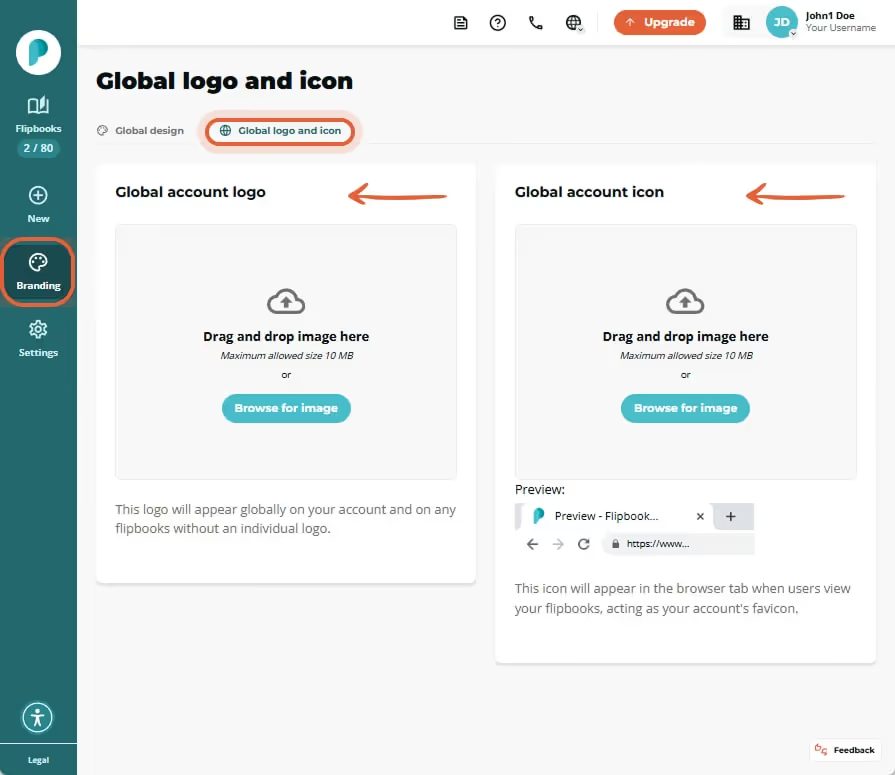
Step 1: Add your logo and favicon.
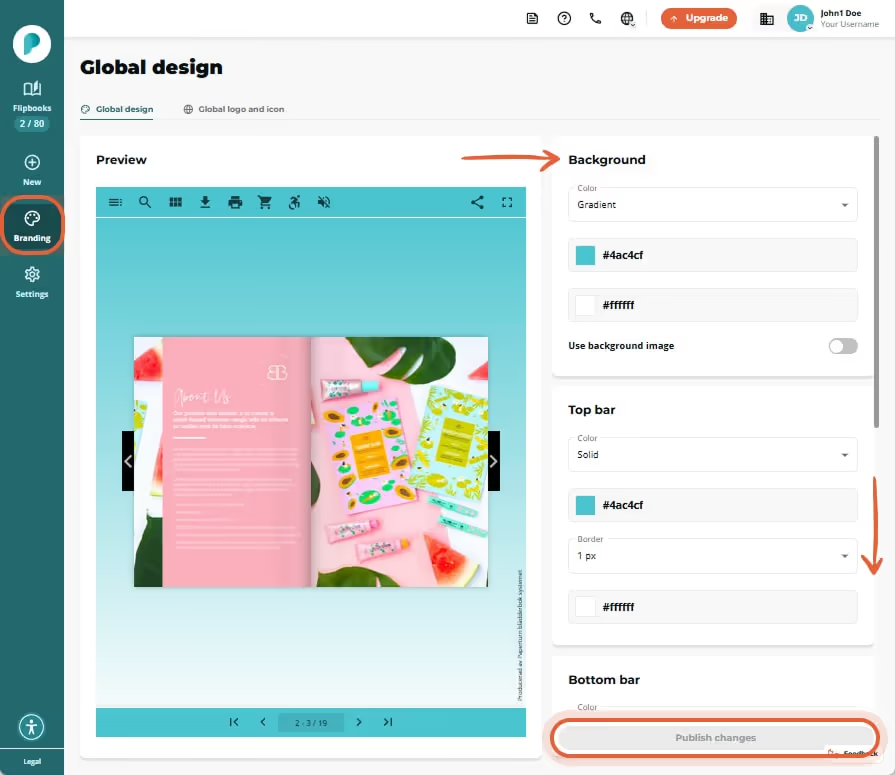
From the overview of flipbooks, click Branding and navigate to Global logo and icon.
From here, you can add your logo and favicon (the logo in your browser tab).
Step 2: Set the background for your online flipbook.
- Choose between solid or gradient background colors, or a background image.
- Choose a background that fits your visual style.
Need the exact steps? How-to: Customize Your Flipbook's Design and Branding - Paperturn
2.2 Add Links to Clear Calls to Action
Estimated Time: 15 Minutes
Let's go ahead and identify your calls-to-action so we can add links to them.
What is a CTA? A CTA is a short text that encourages a specific action from the reader. Examples are:
“Shop now”
“Request quote”
“Learn more”
“Contact us”
“View details”
Once located, you can convert CTAs into interactive links inside the flipbook editor.
Paperturn supports three main types of links:
External links: these links send readers to your website, shop, form, or any landing page.
Internal links: helpful to connect pages within the flipbook, ideal for catalogs and longer publications.
Shop-now links (bulk link editor): perfect for catalogs that require many product-specific links.
Add your Calls to Action.
Step 1: Go through your PDF and identify your Calls to Action.
Make sure the CTAs are large enough, spaced clearly, and visually distinct so they stand out. If you don't have any clear CTAs, you can either a) edit your PDF or b) insert an image with CTA text.
Step 2: Find your uploaded PDF in the Flipbooks section and click the Edit button.
Select the page you want to add your interactive CTA and click the Links and videos button.
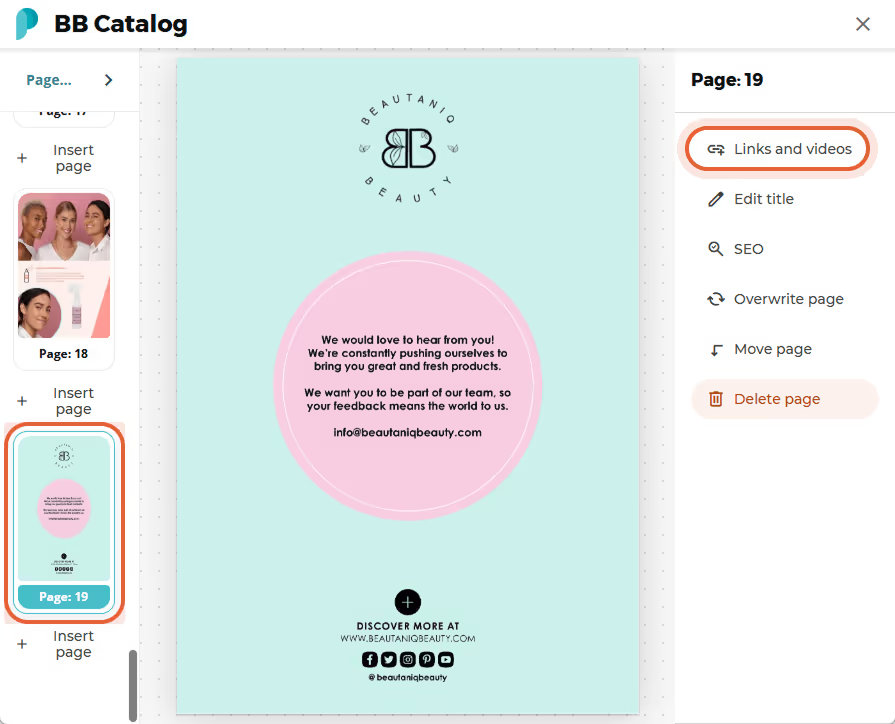
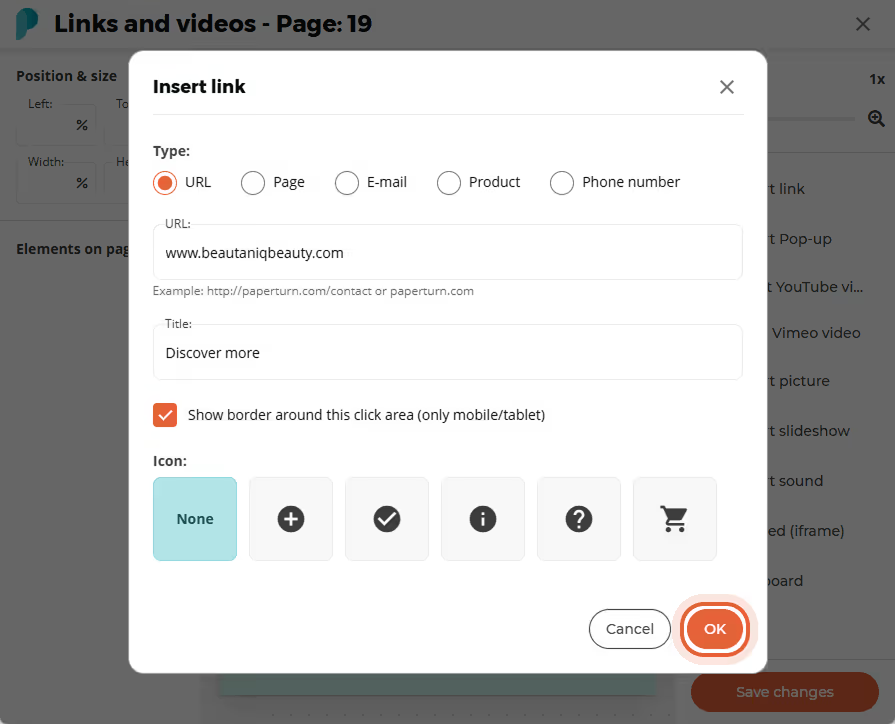
Step 3: Click Insert Link in the right-hand menu. We recommend starting with one of 4 types of links:
Insert a URL link (external link to another webpage).
Insert a Page link (internal link to another page within your flipbook).
Insert an Email link (prompts an email client to open with the designated email address filled out).
Insert a Phone number link (auto-dials a phone number when clicked).
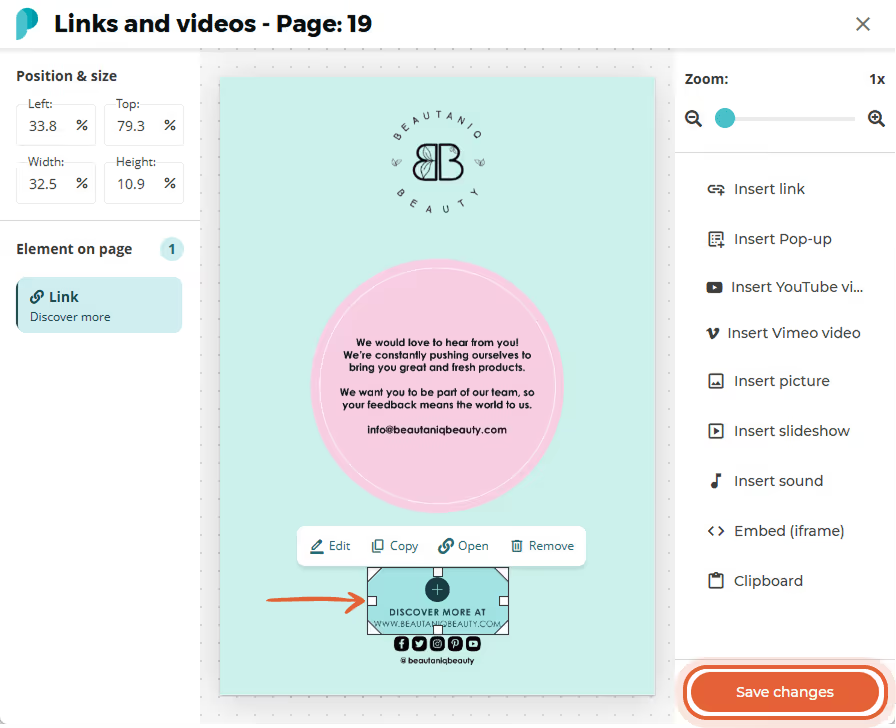
Step 4: Move and scale the link area to the preferred size and position on the page, and save the changes.
Need the exact steps? How-to: Add Links, Images & GIFs to Your Flipbook - Paperturn
2.3 Embed at Least One Video
Estimated Time: 15 Minutes
Now it's time to make sure your readers are hooked! We can deepen your audience's experience by adding videos. With Paperturn, you can integrate YouTube or Vimeo seamlessly into any page.
Are you in doubt about which video to add? Some possibilities include adding a short product demo, a welcome from leadership, an explainer for complex services, or event highlights.
Step 1: Find your uploaded PDF in the Flipbooks section and click the Edit button.
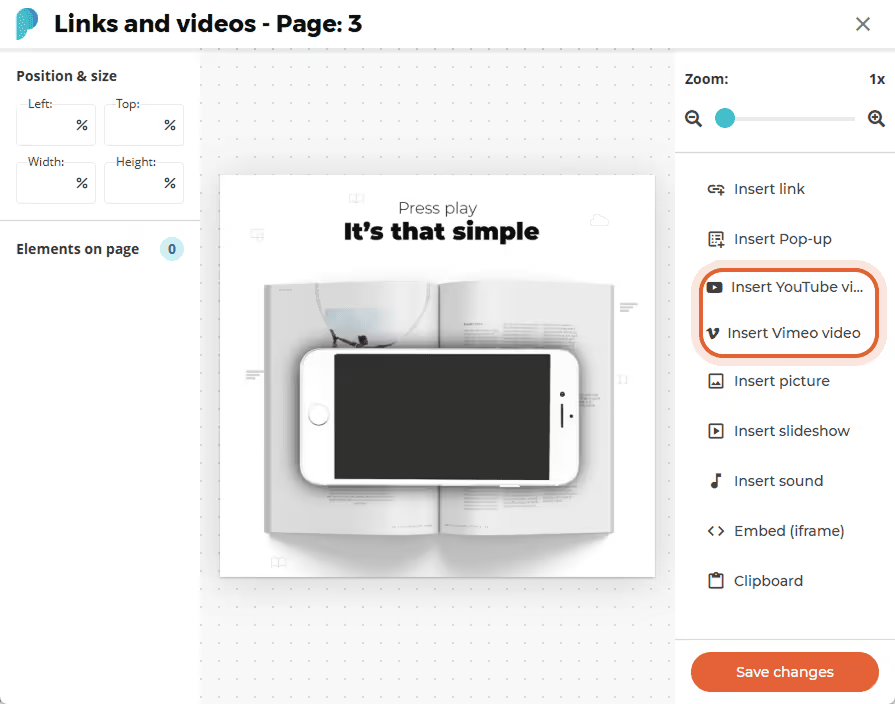
Select the page you want to add your interactive CTA and click the Links and videos button.
Step 2: Click either Insert YouTube video or Insert Vimeo video.
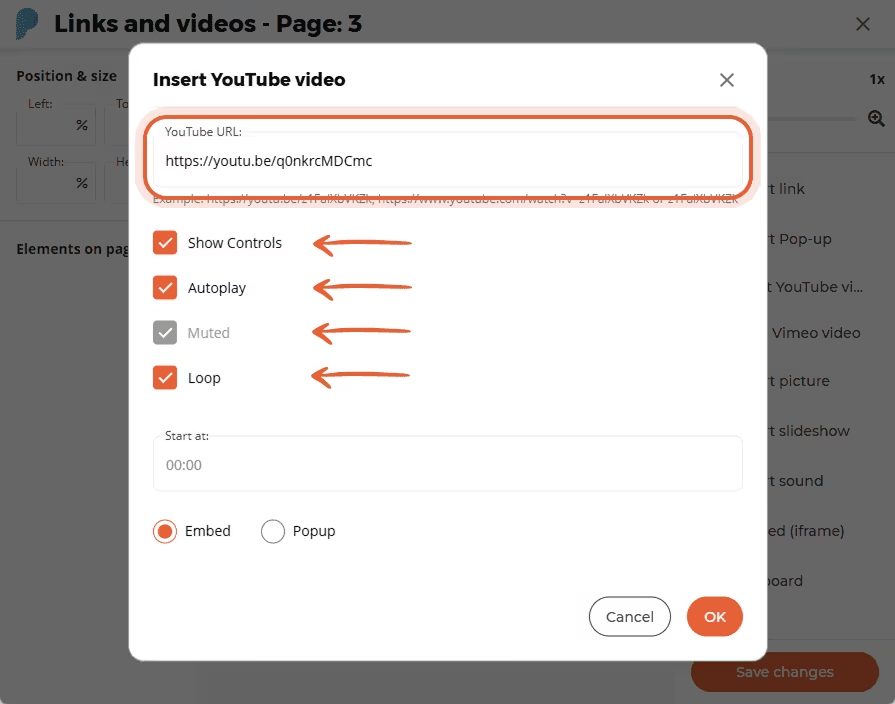
Step 3: Paste the video URL into the field and adjust the playback settings to your preferences.
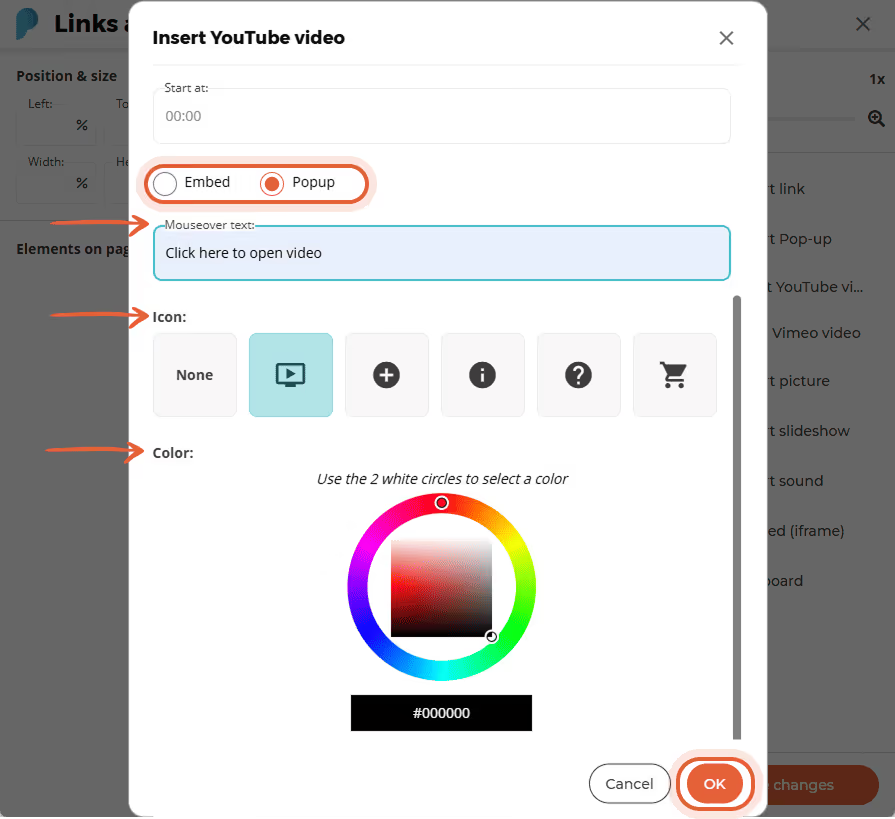
Step 4: Choose whether the video should be embedded or shown as a pop-up.
The pop-up option is ideal if your readers primarily view your publications on mobile devices.
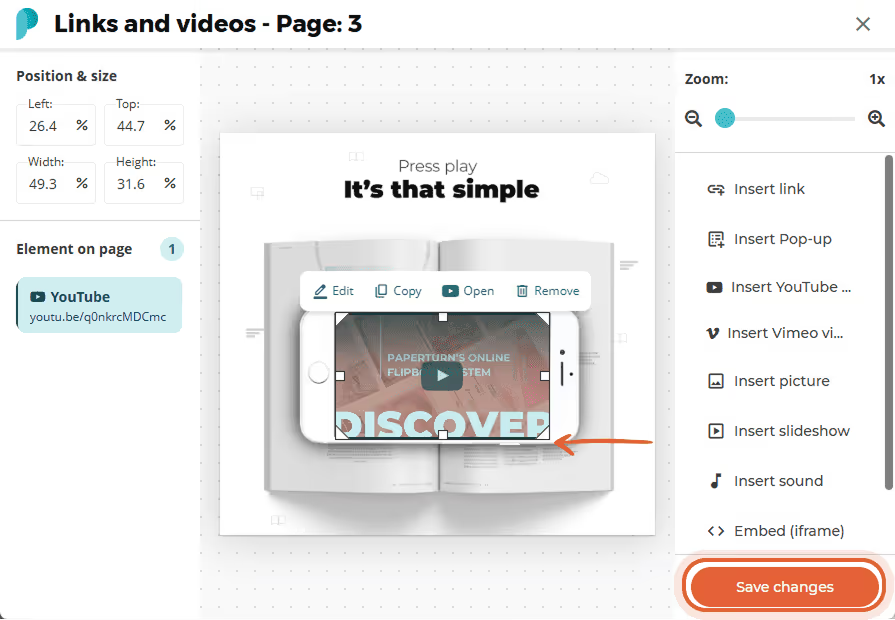
Step 5: Move and scale the video to the preferred location and size, and save the changes.
Need the exact steps? How-to: Embed a Video into Your Publication - Paperturn
2.4 Add Lead Forms Effortlessly
Estimated Time: 5 Minutes
Collecting leads at the point of highest interest is crucial.
A lead form helps you collect useful information about your reader. Keep it short in order to boost completion rates.
The lead form pops up as soon as your prospects enter your online flipbook, so you always know who is engaging with your content.
Add Your Lead Form.
Step 1: Find your uploaded PDF in the Flipbooks section and click the Settings button. In Analyze, click on the Lead Form tab.
Step 2: Toggle the Activate Lead Form and fill in the required fields. You can add additional input fields if you wish to capture more information.
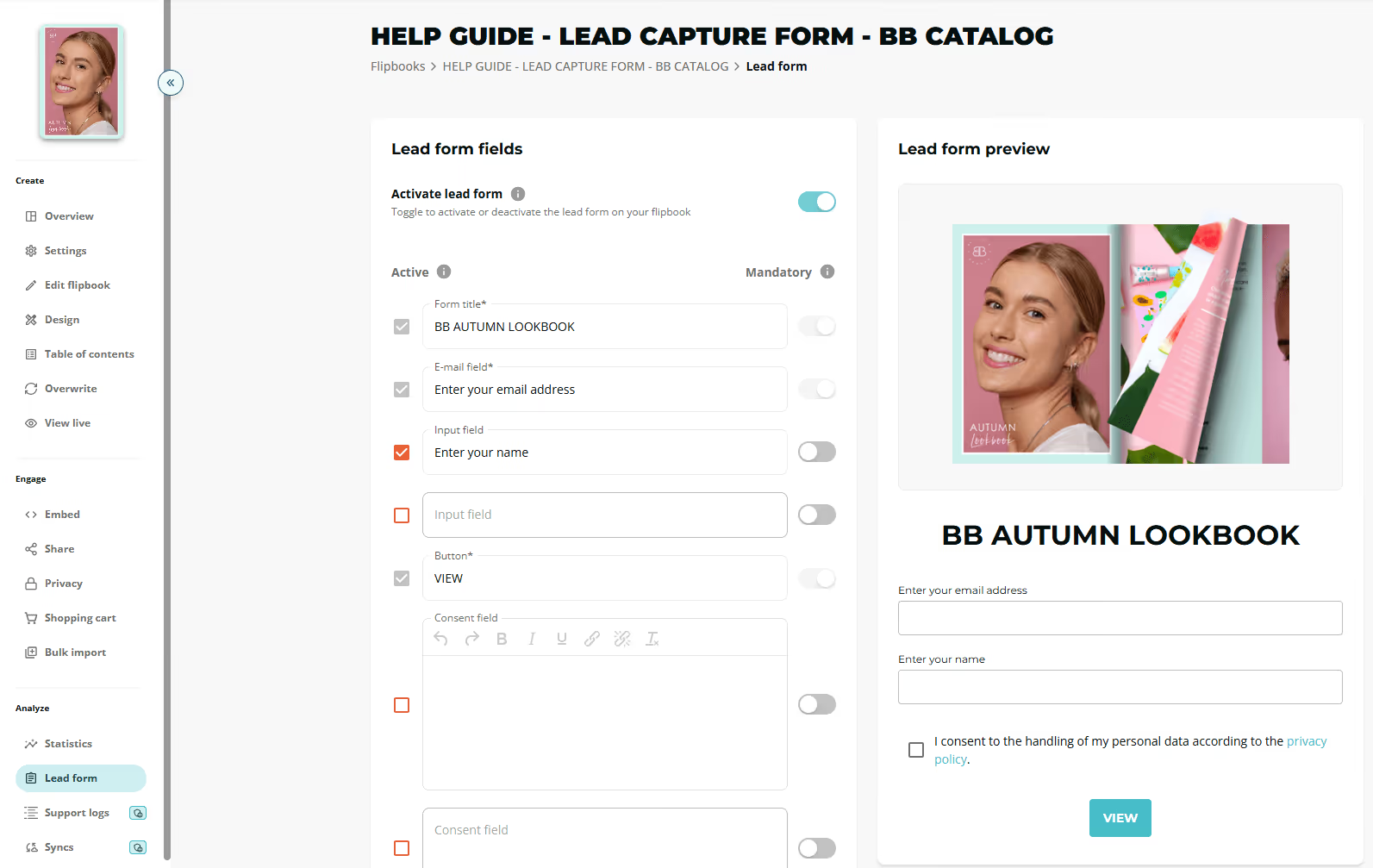
Step 3: Preview how your lead form will look on the right-hand side of the screen and save to activate the changes.
Need the exact steps? How-to: Add a Lead Form to Your Flipbook - Paperturn
Step 3: Capture Your First Lead
A beautiful flipbook without distribution is only an internal demo. It has to be shared.
We recommend starting with 3 channels: your email, website, and social media.
3.1 Send an Email to a Targeted List
Estimated Time: 15 Minutes
Emails are one of the highest-value channels for distributing flipbooks. In fact, when Panasonic embedded their interactive catalog via email, they saw a 6x increase in email click-through rates compared to prior email campaigns.
Step 1: Select the flipbook you want to share and click the Settings icon. In Engage, click on the Share tab.
Step 2: Select the page(s) where you want the flipbook to open when clicked, choose whether to display a single page or a two-page spread, and set the image size and resolution. Once you have made your selections, click Copy image to clipboard to save the image.
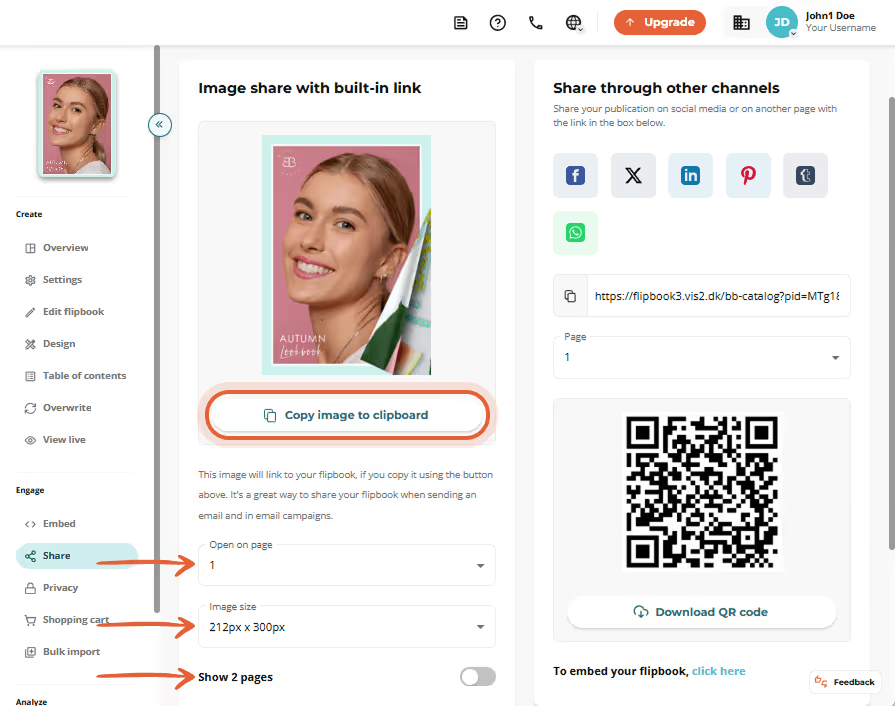
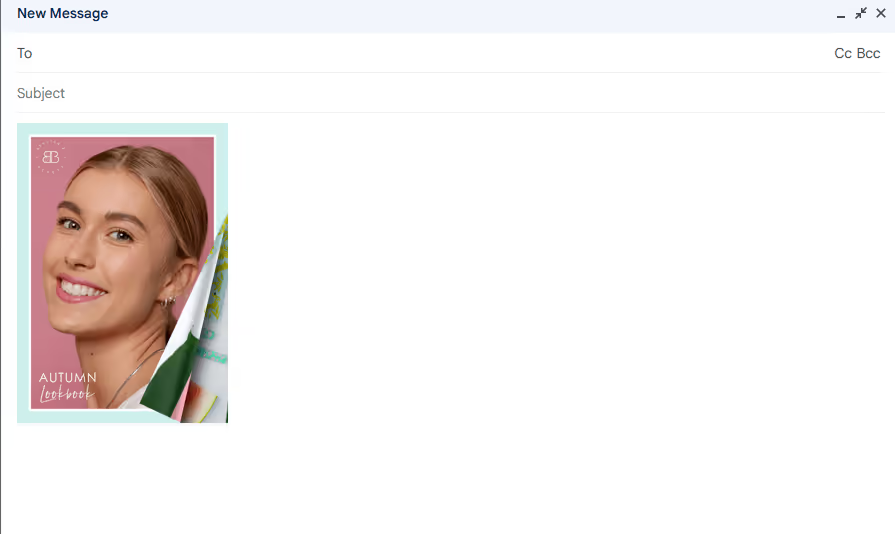
Step 3: Open your email and paste the copied flipbook image. The pasted image includes an auto-generated link that directs recipients to the full version of your flipbook.
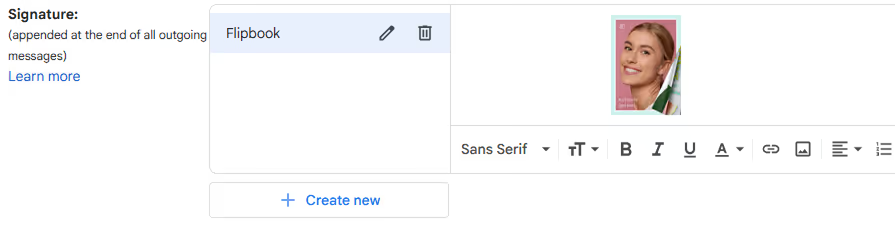
Step 4 (optional): If you want to add the flipbook to your email signature, you can do that too!
Open your email and paste the flipbook image into your email signature as desired. The pasted image includes an auto-generated link that directs recipients to the full version of your flipbook. This is an easy way to create an evergreen marketing touchpoint.
Need the exact steps? How-to: Add a Flipbook into Your Email Signature - Paperturn
3.2 Embed on Your Website
Estimated Time: 10 Minutes
Embedding a flipbook onto your website enhances user experience by providing an interactive and engaging way to present your content. It keeps visitors on your site longer and boosts engagement.
Step 1: Select the flipbook and click on the Settings icon.
Under Engage, click Embed.
Step 2: Adjust the following Embed settings to match your brand:
- size
- starting page
- flipbook's features
- background color
- flip sound
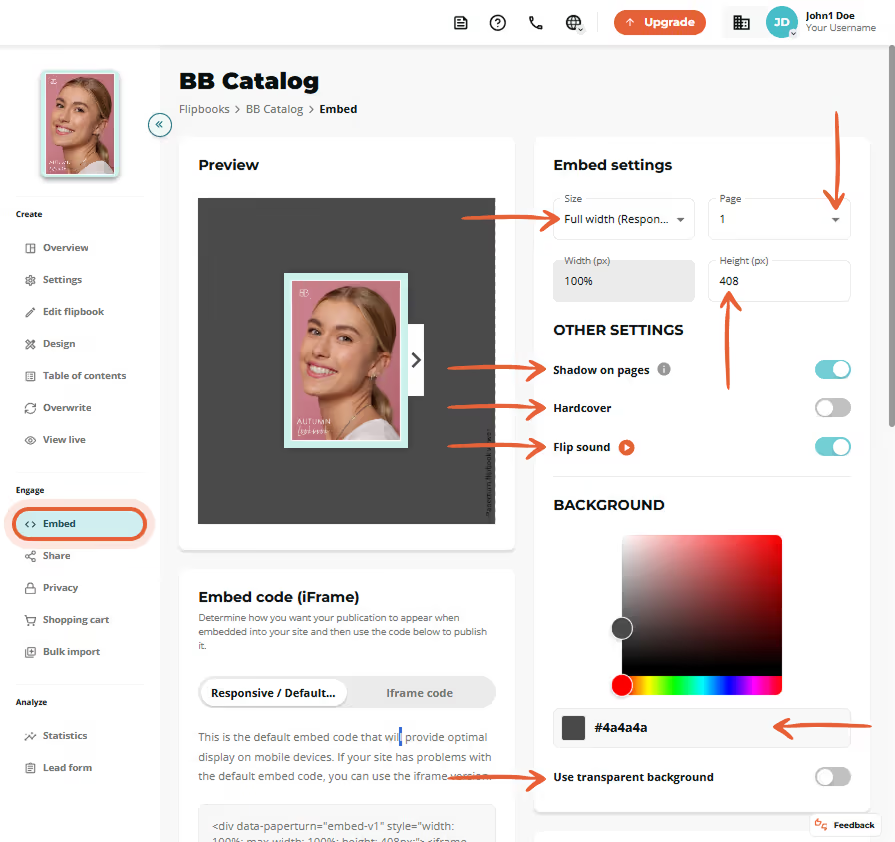
Step 3: After finalizing your embed customizations, select Copy embed code and paste the code into the desired location on your website to display the flipbook. Website builders vary in how and where to add custom code snippets. Please follow your provider's directions. The vast majority of the time, it's simply a copy-paste away.
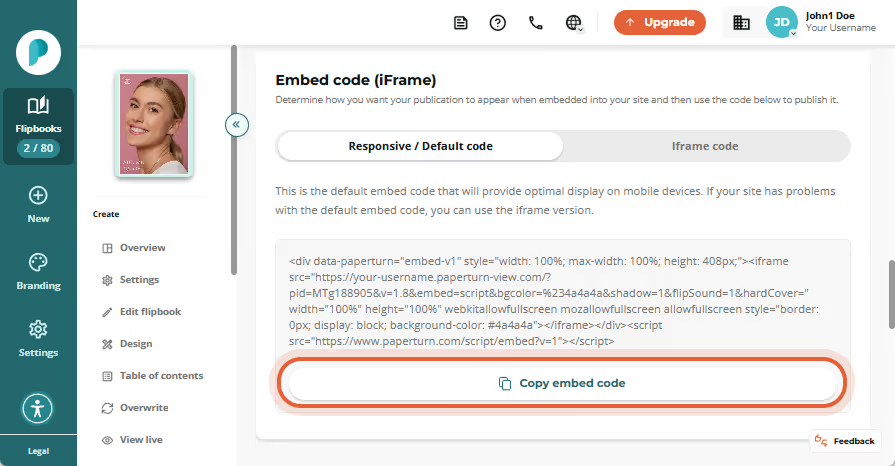
Need the exact steps? How-to: Embed a Flipbook onto Your Website - Paperturn
3.3 Share on Social Media
Estimated Time: 5 Minutes
Share on LinkedIn, Facebook, or X with an effective visual and social link to amplify your content, reach a wider audience, and encourage more readers to explore your flipbook.
Radley London uses this approach effectively. Their virtual outlet is built around a WhatsApp-led community, so their flipbooks must be instantly shareable, mobile-friendly, and perfect for direct chat-based engagement.
Step 1: Select the flipbook and click the Settings icon. In Engage, click on the Share tab.
Step 2: Under the Share through other channels card, choose the page you want the flipbook to open to when shared. Copy the link provided or click one of the icons to share your flipbook directly to a specific platform.
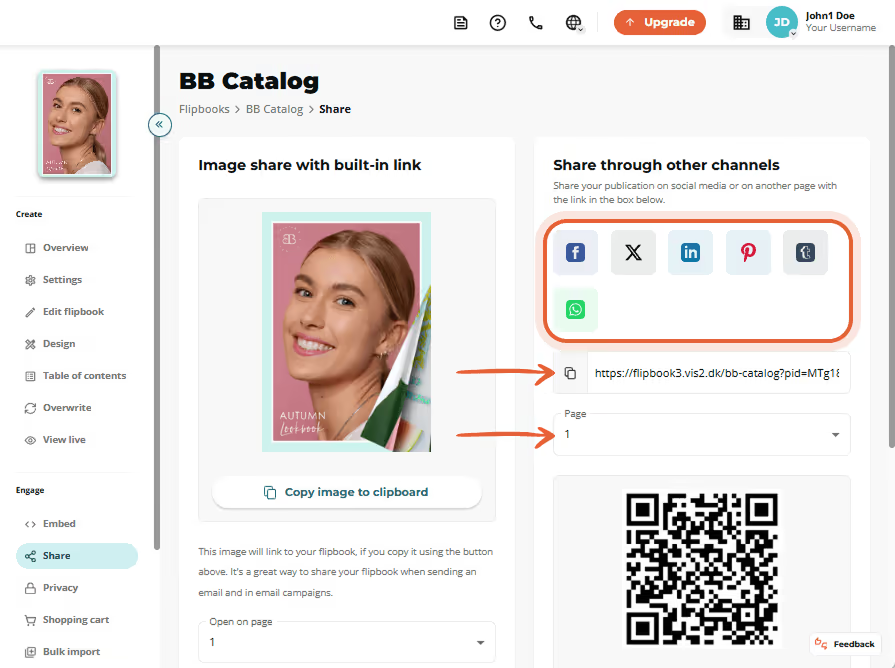
Need the exact steps? How-to: How to Share Your Flipbook - Paperturn
Step 4: Get Audience Statistics
Estimated Time: 5 Minutes
Paperturn provides comprehensive tracking options for your flipbooks, ranging from basic statistics to advanced integrations. In this guide, we will only cover Paperturn's built-in statistics. In our built-in statistics, you have a general overview of your flipbook's performance, where you can see:
Views by device, browser, OS, link source, geolocation
Number of downloads
Lead form data
Step 1: Select the flipbook and click the Settings icon. In Analyze, click on the Statistics tab.
Step 2: Observe Paperturn's statistics module and adjust the date range to view statistics cumulatively for the year or per specific month.
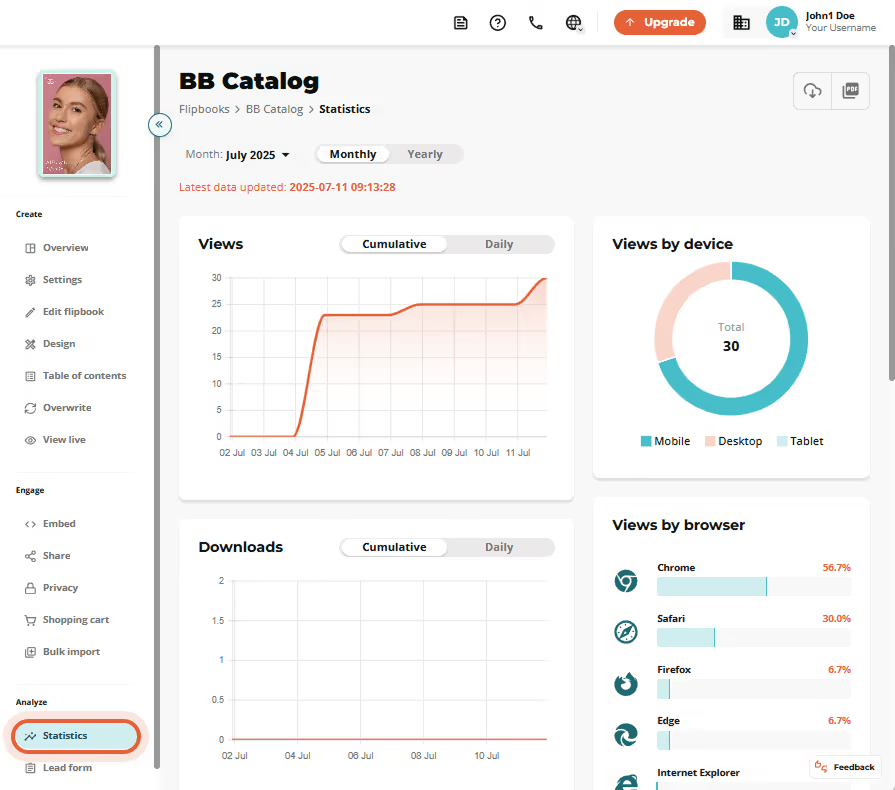
Need the exact steps? How-to: Track Your Flipbook Performance with Statistics - Paperturn
Are you a tech-savvy marketer? Then add GA4 or GTM to see the full funnel.
How-to: Add GA4 Tracking to Your Flipbooks - Paperturn
How-to: Add GTM to Your Flipbooks - Paperturn
Build Your ROI Snapshot
Now is the time to capture the impact of your trial. This section guides you through summarizing in-trial results and creating a concise ROI snapshot to share with stakeholders.
Capture the Before
How was this content shared previously? Email attachments, printed handouts, or shared drives?
What visibility did you have? Did you have any data on the audience’s experience?
What did it cost? Printing, shipping, resends, or missed opportunities?
Capture the In-Trial Results
Here’s a summary of the tangible benefits and results you’ve achieved so far. Take a moment to review the platform and/or GA4 statistics, any lead captures, or order requests received.
1. Live, Branded Flipbook
- At least one live flipbook has been created from the selected PDF.
- Branding has been applied, including logo, colors, background, and favicon.
2. Interactive Content
- CTA links have been incorporated.
- Videos have been embedded to enhance engagement and enrich storytelling.
- Lead forms have been included to capture first-party audience information directly within the flipbook.
3. Multi-Channel Distribution
- The flipbook has been shared via email, website embedding, and social media.
- Inclusion in email signatures has provided ongoing visibility and additional touchpoints for engagement.
4. Engagement and Lead Tracking
- Views have been tracked by device, browser, operating system, and traffic source.
- Lead form submissions have been captured to identify potential prospects
5. Operational Efficiencies
- Repeated printing, shipping, and sending of attachments have been reduced or avoided.
- PDFs can be overwritten without breaking links, ensuring a stable and up-to-date resource.
- Internal collaboration and sharing have been simplified.
Share Your Snapshot
Now that the “before” and in-trial results are documented, all the essential data is in place to assemble a clear, side-by-side ROI snapshot. Present it to the decision-maker to highlight the trial’s impact. If you are the decision-maker, review the results carefully and assess the improvements achieved.
If continuing with flipbooks aligns with upcoming content needs or workflows, explore the available plans and select the option that best matches those requirements.
Pricing: Pricing & Plans - PDF Flipbook Software
Conclusion
In just 7 days, a single high-impact PDF can be transformed from a static file into a live, branded, interactive flipbook. By the end of the trial, measurable engagement, lead capture, and performance insights will show you what is possible.
Paperturn Blog