
How to Make a PDF Accessible: A 7-Step Checklist
Publishing a PDF online is easy. Publishing a PDF that is usable for everyone takes a little more intention.
Whether you are sharing annual reports, course catalogs, brochures, magazines, or policy documents, accessibility is not a nice-to-have. It is how you make sure people can actually read, navigate, and understand what you publish.
Introduction
This guide walks you through a simple, repeatable checklist to improve the accessibility of your source PDF before you publish it as a digital document or convert it into a more interactive experience.
Quick note: This article is educational and not legal advice. Accessibility conformance depends on both your content and the tools you use.
What PDF Accessibility Actually Means
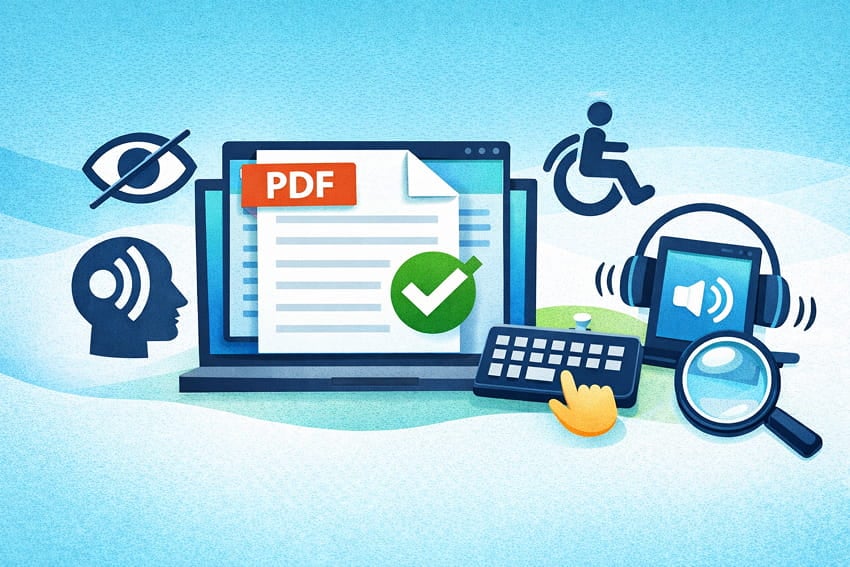
A document is considered accessible when it can be used by people with a wide range of disabilities and assistive technologies, such as screen readers, keyboard-only navigation, screen magnifiers, voice control, and switch devices.
That includes people with:
Blindness or low vision
Motor impairments
Hearing impairments
Cognitive or learning disabilities
Age-related impairments
The Key Idea: Accessibility Starts With the Source File
Many teams publish a beautifully designed PDF that functions like a poster in a file. It may have no real reading order, no tags, no useful headings, or no text layer at all. When that happens, assistive tech cannot interpret the content properly, no matter where you publish it.
Start by making the original PDF accessible first. Then your digital publishing workflow becomes faster, easier, and more reliable.
The PDF Accessibility Checklist (7 Steps)
1) Create a Clear Structure and Logical Reading Order
Your PDF needs a structure that matches how a human would read it. Use headings, paragraphs, sections, lists, tables, and other elements in the right order.
Use document tags to define reading order and identify document elements. Tags help assistive tech understand what a heading versus body text is, the reading sequence, and how content should reflow on mobile or when zoomed.
Tip: Keep layouts as simple as possible. An overly complex design can break reading order and confuse screen readers.
2) Use Built-in Accessibility Tools While You Are Creating the Document
Do not wait until export to think about accessibility. Most editing tools include built-in support, such as:
Microsoft Word and PowerPoint accessibility checker
Adobe Acrobat accessibility checker
Heading styles and document outline tools
Workflow tip: Fix issues in the source file first. It is usually faster than patching the exported PDF.
3) Use Strong Contrast and Readable Fonts
A good rule of thumb:
Use high contrast text, such as dark on light or light on dark
Avoid overly thin fonts
Use readable font sizes, often 14px equivalent or higher when exported
Avoid ALL CAPS and heavy italics where possible
Use comfortable line spacing
Accessibility is not ugly design. It is a clear design.
4) Set the Document Language and Add a Meaningful Title
Two easy wins that many teams skip:
Set the document language so screen readers pronounce words correctly
Add a clear document title so users can locate and identify it easily
This matters even more if your audience includes multilingual readers.
5) Make Sure Text is Selectable and Searchable (Use OCR if Needed)
If your PDF is mostly scanned images, it is inherently inaccessible because assistive tech cannot read text inside images. If you must use scanned pages:
Run OCR (Optical Character Recognition) to create a real text layer
Confirm the OCR output is accurate, especially for tables and forms
If there is no text layer, screen readers have nothing to read.
6) Write Descriptive Hyperlinks (Not “Click Here”)
Links should make sense out of context. Screen reader users often navigate by jumping through links.
Good examples:
“Download the 2026 course catalog (PDF)”
“View admissions deadlines”
Not good examples:
“Click here”
“Read more”
If your publishing platform lets you add link titles or tooltips, use that space to provide extra context.
7) Add Alt Text for Non-Text Elements and Transcripts for Videos
Any non-text content needs a text alternative:
Images, icons, and charts should include meaningful alt text
Video should include transcripts and captions when relevant
Complex visuals may need a short summary plus a longer text description nearby or in an appendix
Alt text should describe what matters in context, not every visual detail.
How To Go Beyond the Checklist: Test and Document
Before you publish, do a quick spot-check:
Navigate using keyboard only (Tab, Enter, arrows, Escape)
Test with at least one common screen reader (NVDA, JAWS, VoiceOver, or Narrator)
Try typical tasks such as open, navigate, search, follow links, and understand headings
For high-priority publications, keep a lightweight internal note of what you did to improve accessibility and any known limitations.
Publishing Accessible Digital Documents with Paperturn
If your team publishes long PDFs online, you may want a modern experience instead of asking users to download a file.
Paperturn supports accessible digital publishing by pairing an accessible source PDF with a viewer experience built with accessibility in mind.
Important: Using any platform does not automatically fix an inaccessible PDF. Your source content still needs to be created accessibly.
If you want to see what accessibility options look like in practice, explore Paperturn’s accessibility feature page.
Quick FAQ
Does Publishing a PDF Online Automatically Make it Accessible?
No. If the source PDF has missing structure, poor reading order, or image-only text, accessibility will still be a problem.
Can I Use Accessibility Checkers to Find Issues?
Yes. Checkers can catch common gaps like missing alt text, tag issues, and form field problems. They are a good first pass.
What Is the Fastest Path to Improvement?
Pick one high-value document, apply the checklist above, test it, and turn the process into a repeatable workflow.
Summary
Accessible publishing does not have to be intimidating. Start with the checklist. Fix what you can in the source file. Test the basics. Then publish with tools that support inclusive reading experiences.
That is how accessibility becomes part of your digital publishing standard.